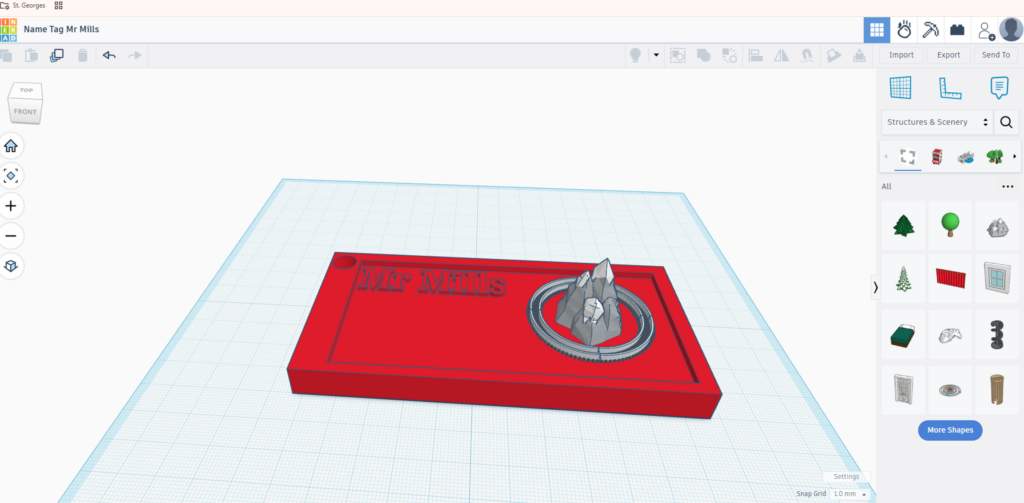

Welcome to 1930s Paris! Today, we are learning how to move around and resize s in 3D space.
Your Infographic Blueprint:
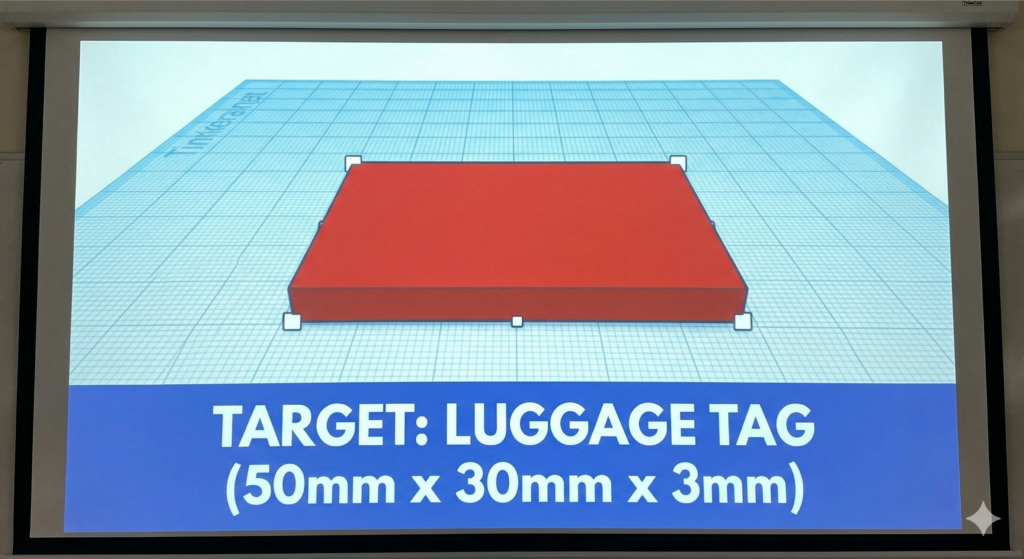
This is what you are trying to make today! Notice how the white handles are used to change the size!
⚡️ TinkerCAD Hotkeys for today:
- W: (Press W) to turn your mouse into a magic floor-placer (The Workplane tool)!
- Shift + Mouse Drag: (Hold Shift while dragging a white corner) to make a shape bigger without warping it.
- Right-Click + Drag: Hold down the right mouse button to spin your camera around!
- Ctrl+C and Ctrl+V: (Copy and Paste) to double your shapes.
Step-by-Step Instructions:
- Get your base: Drag a solid Box onto the Workplane. (Hold Shift while dragging to make it perfectly square, but for this tag, let’s keep it a rectangle).
- Be precise: Click the numbers on the corners and type in exactly 50 for the length and 30 for the width.
- Squash it: Click the white square on the very top of the box. Change the height to exactly 3.
- Add your mark: Drag a Star, Heart, or your initial onto the Workplane. Use the Shift key to make it fit.
- Lift it up: Use the black cone arrow pointing up (or press the D key on your keyboard) to lift your shape so it sits nicely on top of your tag!
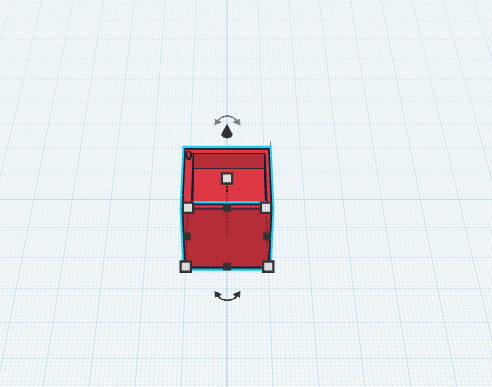
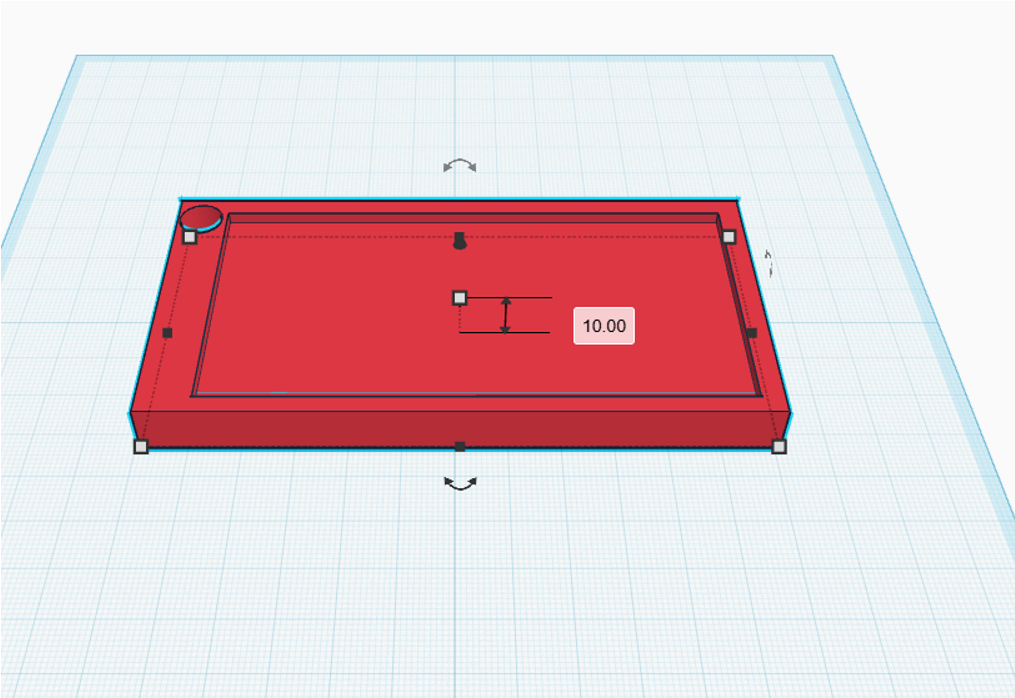
Click on your shape, then using the black squares adjust the size of your shape to make it 120mm long and 60mm wide.
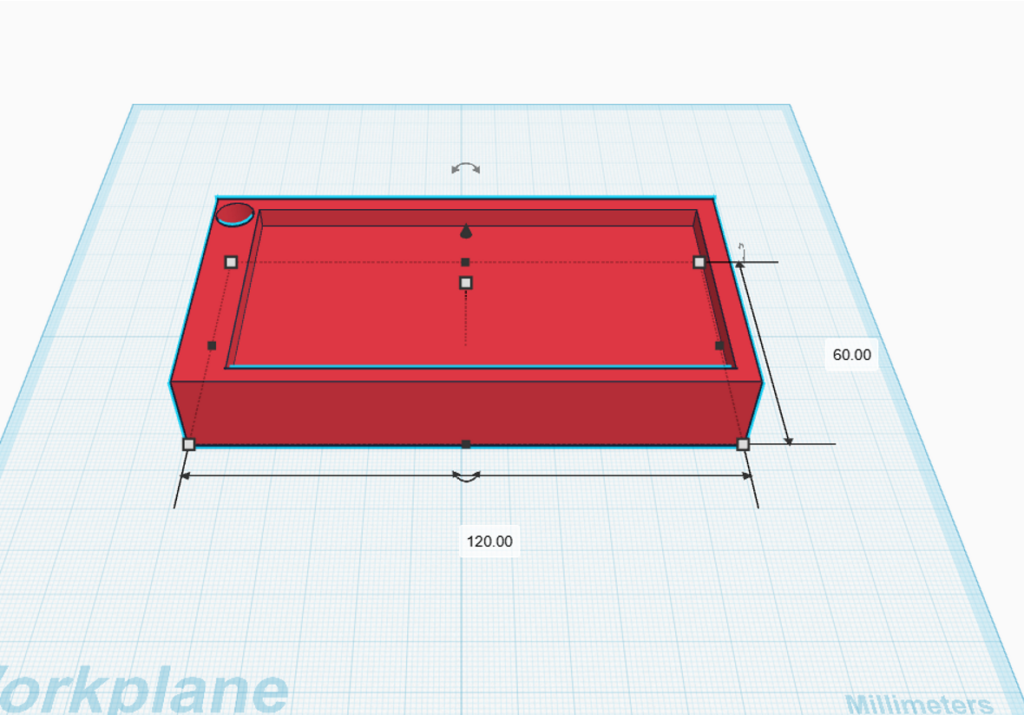
Use the white square in the middle of your shape to change the height to 10mm
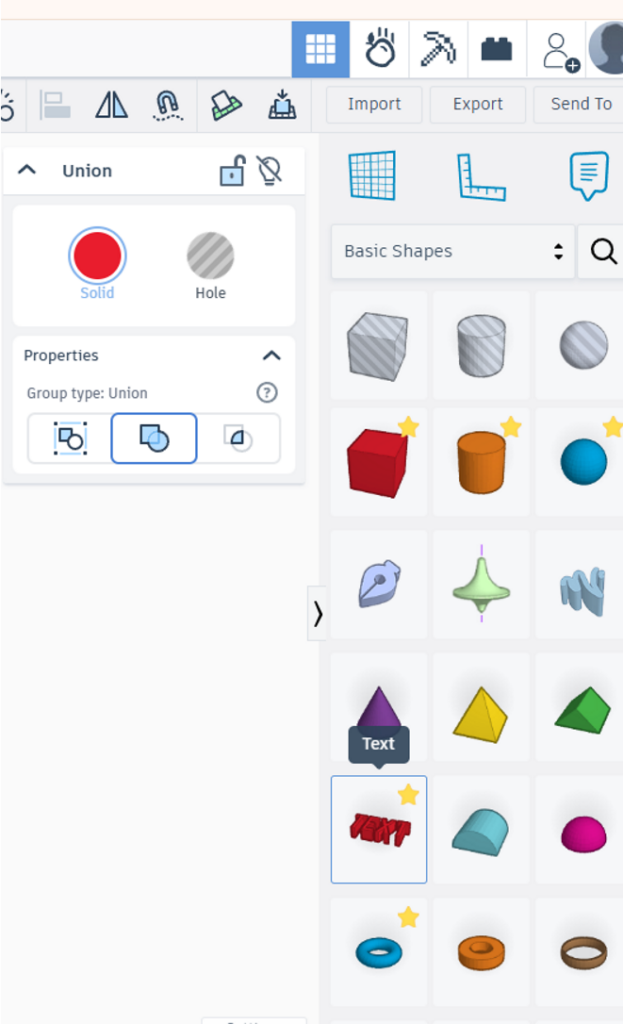
Now you can add your name to your tag. You can do this by typing your name using the text option or you can add individual letters to your name tag.
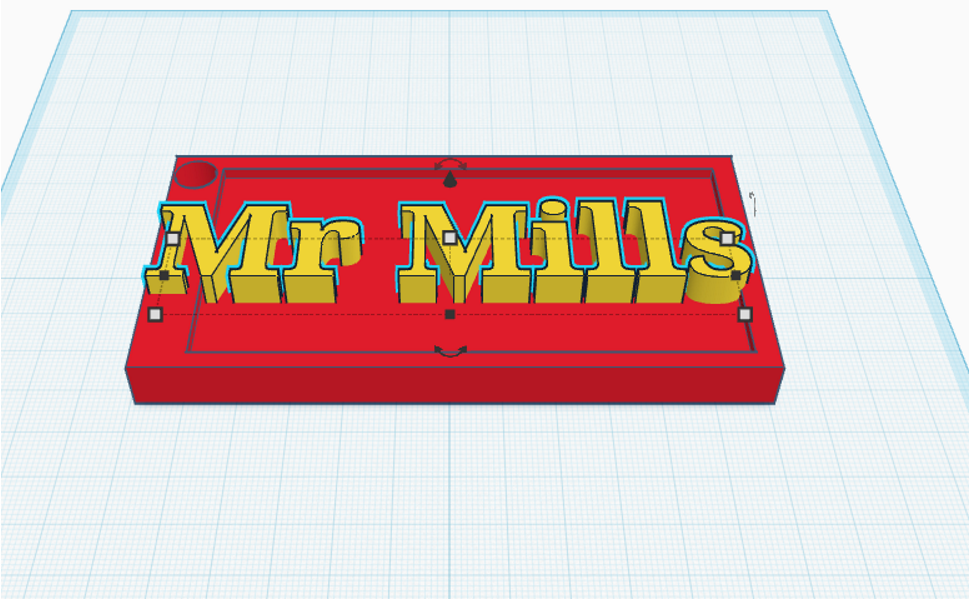
Using the same functions as before in step 1 and 2 adjust the size of your name to make it fit within your name tag.
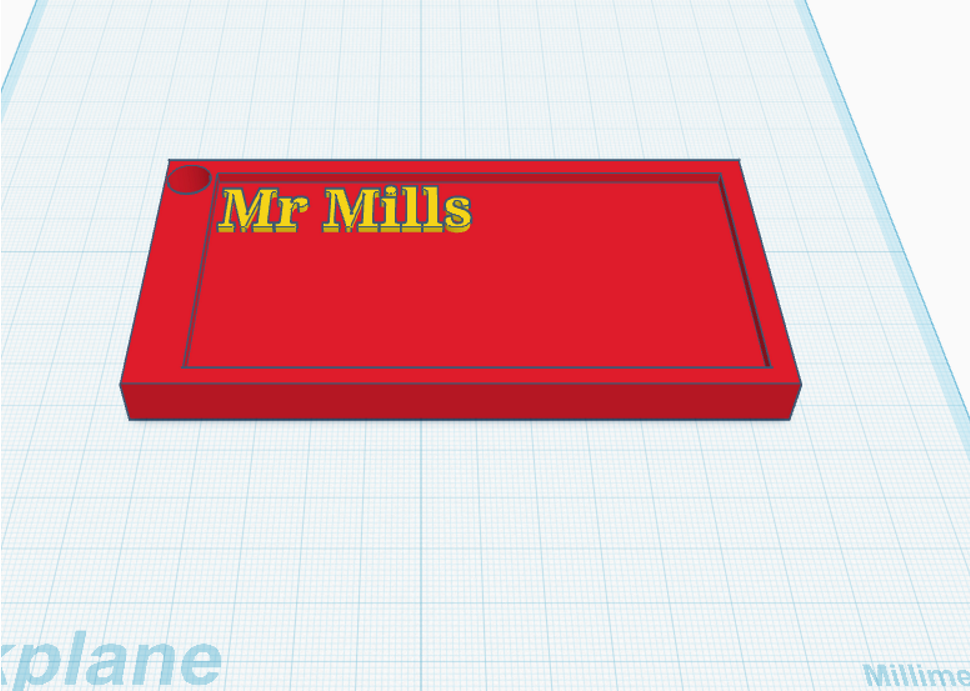
Click anywhere outside of your shape and drag your mouse over your tag, a red square should appear. Let go of the mouse to select both parts of your name tag. Finally, select the group function from the top bar to attach your name to your tag.
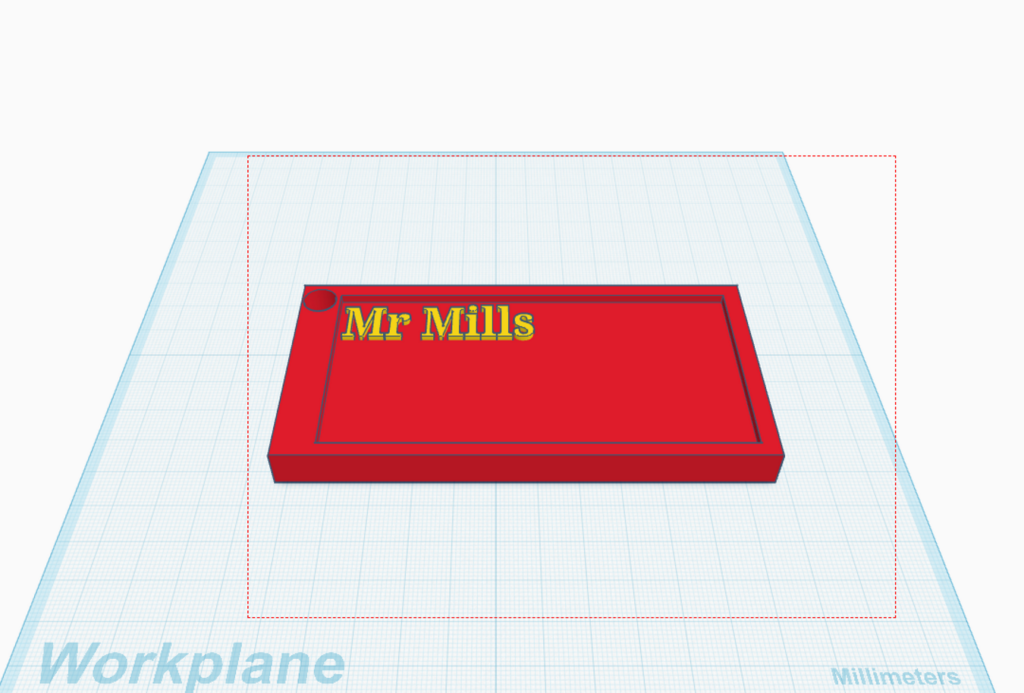
Lastly, use the shapes library to add 1 or 2 objects to your name tag to make it unique to you. Remember to use what you have already learned to adjust the size of your objects and to group everything together.